 roundup
 Ergonomic Keyboard With Touchpad: 10 Top Models Tested for 2026
Our team tested 10 ergonomic keyboards with touchpad side by side. Here are the winners for comfort, value, and overall performance heading into 2026.


Chairs, desks, keyboards, mice, and everything else you need for a workspace that doesn't wreck your body by Friday.

We may earn a small commission through links on this page, at no extra cost to you. As an Amazon Associate, we earn from qualifying purchases. Ratings reflect our own editorial evaluation.
Think about this: you're logging roughly 2,000 hours a year at your desk. When your chair doesn't fit, your keyboard puts your wrists at an awkward angle, or your monitor is sitting way too low, those "minor" issues snowball into real pain over time.
We put this guide together after testing and reviewing over 50 ergonomic office products. It covers chairs, desks, keyboards, mice, lighting, and the smaller accessories that tend to fly under the radar.
Every section links out to our in-depth reviews so you can go deeper on whatever's relevant to you.
We're practical here, not theoretical. Spec sheets don't mean much to us.
What matters is whether something actually cuts down on pain, fixes your posture, and still holds up after six months of daily use.
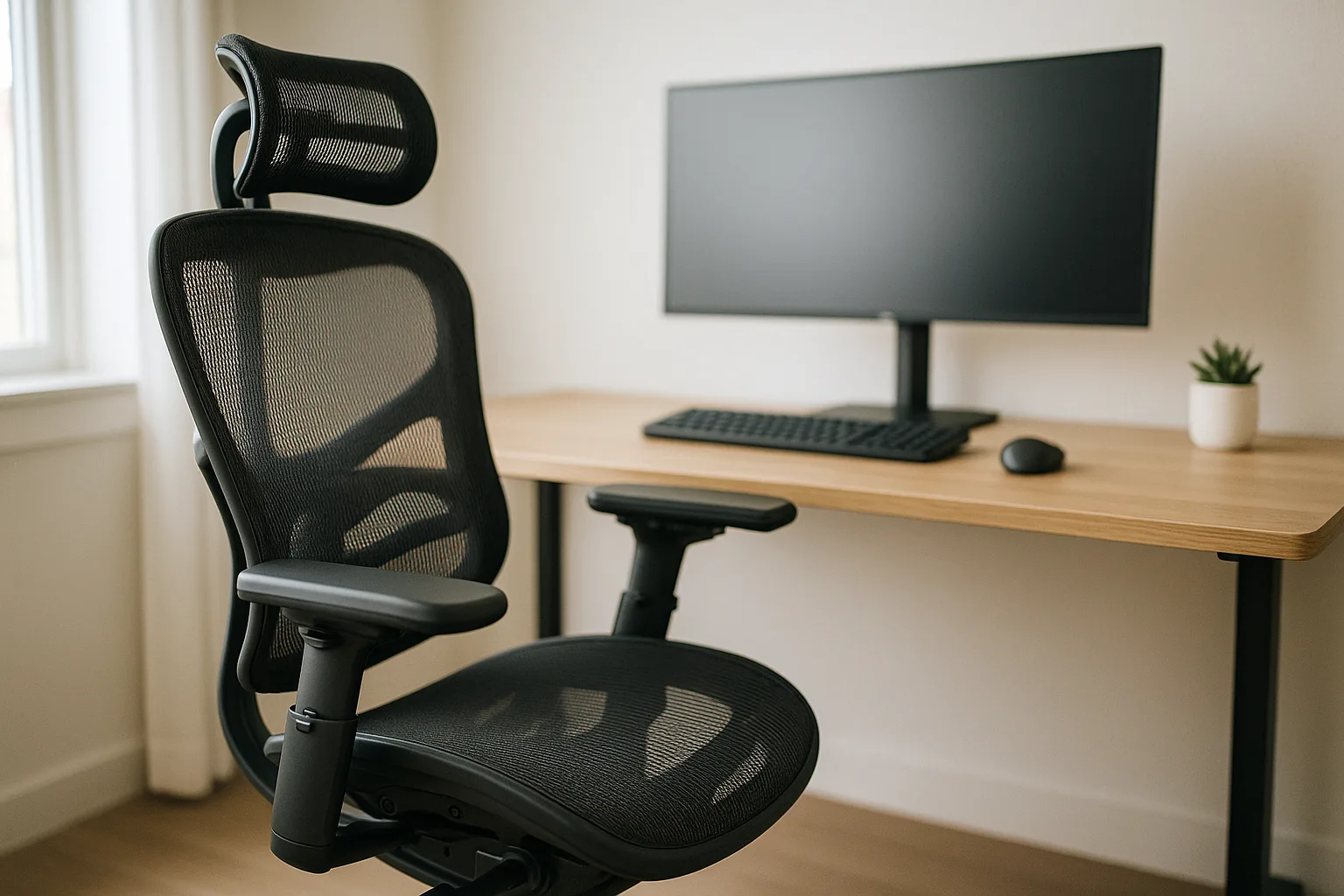
Chair marketing won't tell you this, but the priciest chair on the market is useless if it doesn't fit your body. A $300 chair with solid adjustability will beat a $1,200 model that locks you into one position.
Every time.
Four features separate a genuinely good ergonomic chair from an overpriced office seat: adjustable lumbar support, seat depth adjustment, adjustable armrests, and a decent headrest. Everything else is secondary.
Your lower back naturally curves inward. A flat chair back works against that curve, and after a couple hours you'll start slouching without even noticing.
Adjustable lumbar support lets you place a firm pad exactly where your spine needs the most help.
Look for chairs where the lumbar moves up and down, not just in and out. Torso lengths vary a lot from person to person, and a lumbar pad stuck in the wrong position is barely better than having none.
Our ergonomic chairs with neck support guide highlights models that nail this.
People almost always forget to check this one. When the seat pan is too deep, the front edge digs into the backs of your knees and cuts off circulation.
Too shallow and your thighs don't get proper support.
A good test: you should be able to fit two to three fingers between the seat edge and the back of your knee. Chairs with a sliding seat pan let you fine-tune this no matter your leg length.
Fixed armrests are basically worthless from an ergonomic standpoint. Your arms should rest at a height that keeps your shoulders relaxed, with elbows bent at roughly 90 degrees.
4D armrests (height, width, depth, angle) give you the best chance of finding that sweet spot.
Can't swing 4D? At a minimum, get height-adjustable arms.
Armrests set too high push your shoulders up toward your ears, and ones set too low make you lean to the side. Our ergonomic arm support guide digs deeper into this.
Technically, you don't need a headrest if you sit with perfect posture. But be honest with yourself: nobody keeps perfect posture for eight hours.
A solid headrest takes the load off your neck whenever you lean back to think, read, or hop on a call.
Adjustability is the whole game here. A headrest stuck at the wrong height actually pushes your head forward instead of supporting it, which is worse than having no headrest at all.
No single chair works for every situation. A drafting chair and a task chair solve completely different problems.
Here's how the main types stack up so you can figure out what actually makes sense for your workspace.
| Chair Type | Best For | Seat Height Range | Back Support | Price Range |
|---|---|---|---|---|
| Task Chair | Regular desk work, 6-8 hour sessions | 16" to 21" | Full lumbar + headrest | $200 to $800 |
| Drafting Chair | Standing desks, raised work surfaces | 22" to 32" | Varies, usually minimal | $150 to $500 |
| Kneeling Chair | Core activation, posture training | Fixed tilt | None (open angle design) | $80 to $300 |
| Ball Chair | Brief sessions, active sitting | Fixed | None | $30 to $150 |
| Gaming Chair | Long sessions, reclining | 17" to 21" | High back + neck pillow | $150 to $600 |
| Ergonomic Bench | Workbenches, lab settings | 18" to 26" | Minimal or none | $100 to $400 |
| Folding Chair | Temporary setups, shared offices | Fixed (17" to 18") | Basic back support | $50 to $200 |
If you work a typical office job, a task chair with full adjustability is almost always the way to go. The Duramont Adjustable Office Chair is a great example of what a well-built task chair looks like without breaking the bank.
Taller than average? Check our tall ergonomic chair guide before you buy anything. Most standard chairs max out around 6'1", and beyond that you'll need extended gas cylinders and deeper seat pans.
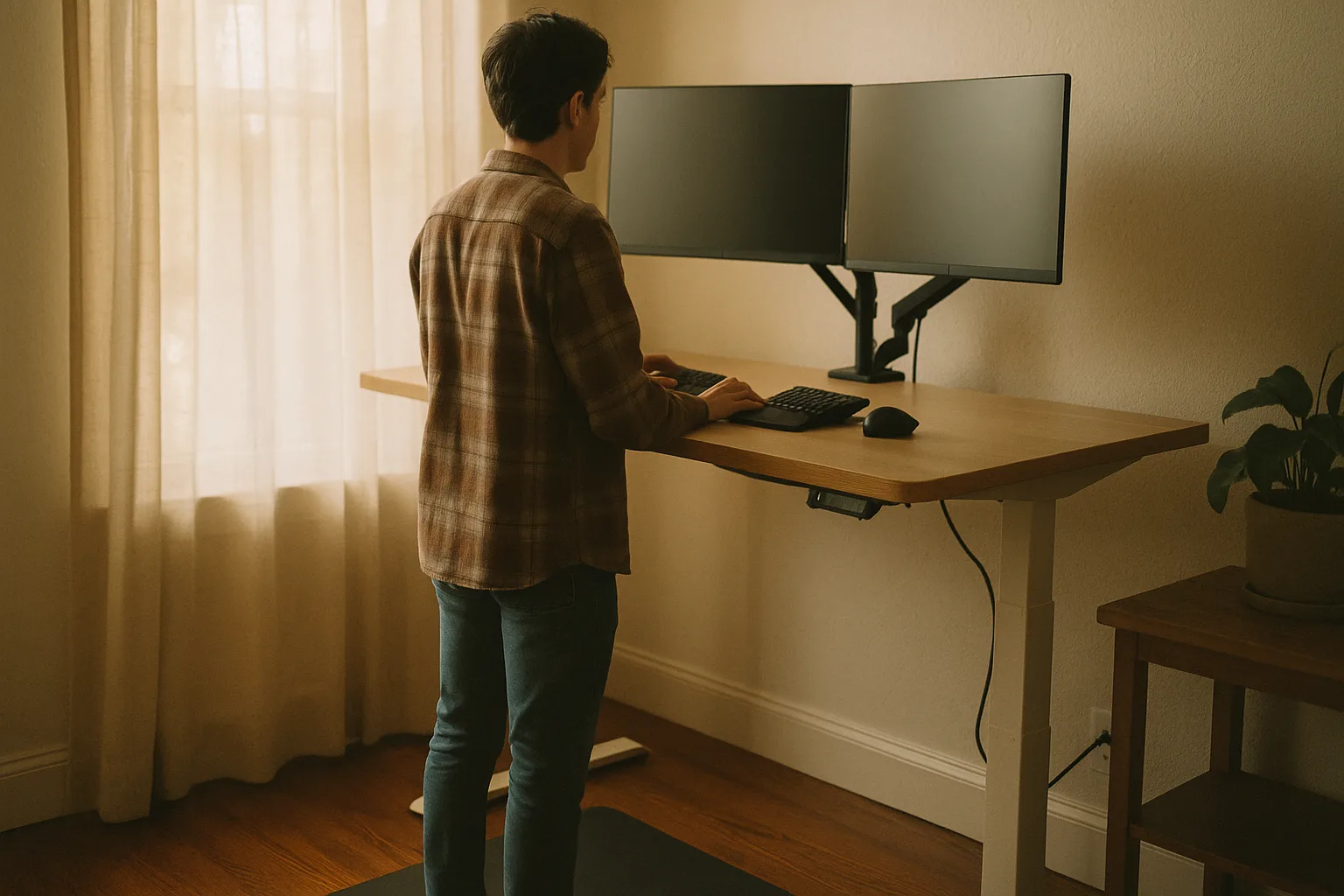
Standing desks got way overhyped a few years ago. The boring reality is that switching between sitting and standing throughout the day beats doing either one all day long.
Stand for eight hours straight and you'll end up with sore feet and varicose veins. Sit the whole time and your hip flexors lock up while your metabolism nosedives.
A good sit-stand desk lets you change positions in under 10 seconds without rearranging everything on your surface. Electric motors win over manual cranks for one simple reason: nobody actually cranks a desk up 200 times a year.
While sitting, your desk surface should hit right at elbow height when your arms hang naturally at your sides. That's 28 to 30 inches for most people.
Standing? Same idea: elbows at 90 degrees, forearms parallel to the floor.
If your desk doesn't adjust, a keyboard tray can compensate when it's an inch or two too tall. Much cheaper than replacing the whole desk.
Our ergonomic student desk guide breaks down height considerations for younger users, though the same principles apply to adults too.
Place your monitor about an arm's length away, with the top of the screen at or just below eye level. That keeps your neck in a neutral position instead of craning forward or tilting up.
Running dual monitors? Don't just stick them side by side and call it a day.
How you position them depends on how you actually use them. If both get equal screen time, center the pair so the bezels meet directly in front of you.
If one's your primary display, center that one and angle the secondary to the side. We've got a full walkthrough in our two-monitor desk setup guide.
A tablet holder or monitor arm lifts your screen off the desk and up to the right height without stacking textbooks underneath it. And a footrest prevents shorter users from dangling their feet, which strains the lower back way faster than you'd think.
Cable management isn't just about looks. Tripping over cables or untangling cords every time you need to plug something in adds real friction to your day.
A tidy desk is an ergonomic desk because you'll actually use it the way it's meant to be used. Our ergonomic workbench guide has layout tips that work for any desk setup.
Regular flat keyboards force your wrists into pronation (palms facing down) and push your hands into ulnar deviation (angled outward toward your pinkies). Over thousands of hours of typing, that's a recipe for repetitive strain.
Ergonomic keyboards tackle this problem in different ways, and which type is right depends on what's bugging you. There's no universal "best" keyboard that works for everyone.
Split keyboards break into two halves so each one lines up with your shoulders. This completely eliminates ulnar deviation.
Some models are fixed-split (one piece with an angle in the middle) while others are two totally separate halves you position wherever feels right.
Fair warning: the learning curve is real. Budget about two weeks of slower typing before you're back up to speed.
But once you adjust, most people swear they'll never go back to a standard layout. Our ergonomic keyboard benefits article walks through the research on why these designs work so well.
Tenting lifts the inner edges of each keyboard half so your hands rest in a more natural handshake position. It reduces the pronation that feeds into carpal tunnel problems and forearm strain.
Some split keyboards have tenting built in. Others use separate leg kits you attach yourself.
Even just 10 to 15 degrees of tent angle makes a noticeable difference for most people.
If reaching for a mouse causes shoulder pain, a keyboard with a built-in trackball or a keyboard with a touchpad keeps your hands planted in one spot. Programmers and data entry workers love these because they're constantly bouncing between typing and cursor movement.
Not sure if it's worth the investment? We break that down in our are ergonomic keyboards worth it analysis, backed by actual research and real user data.
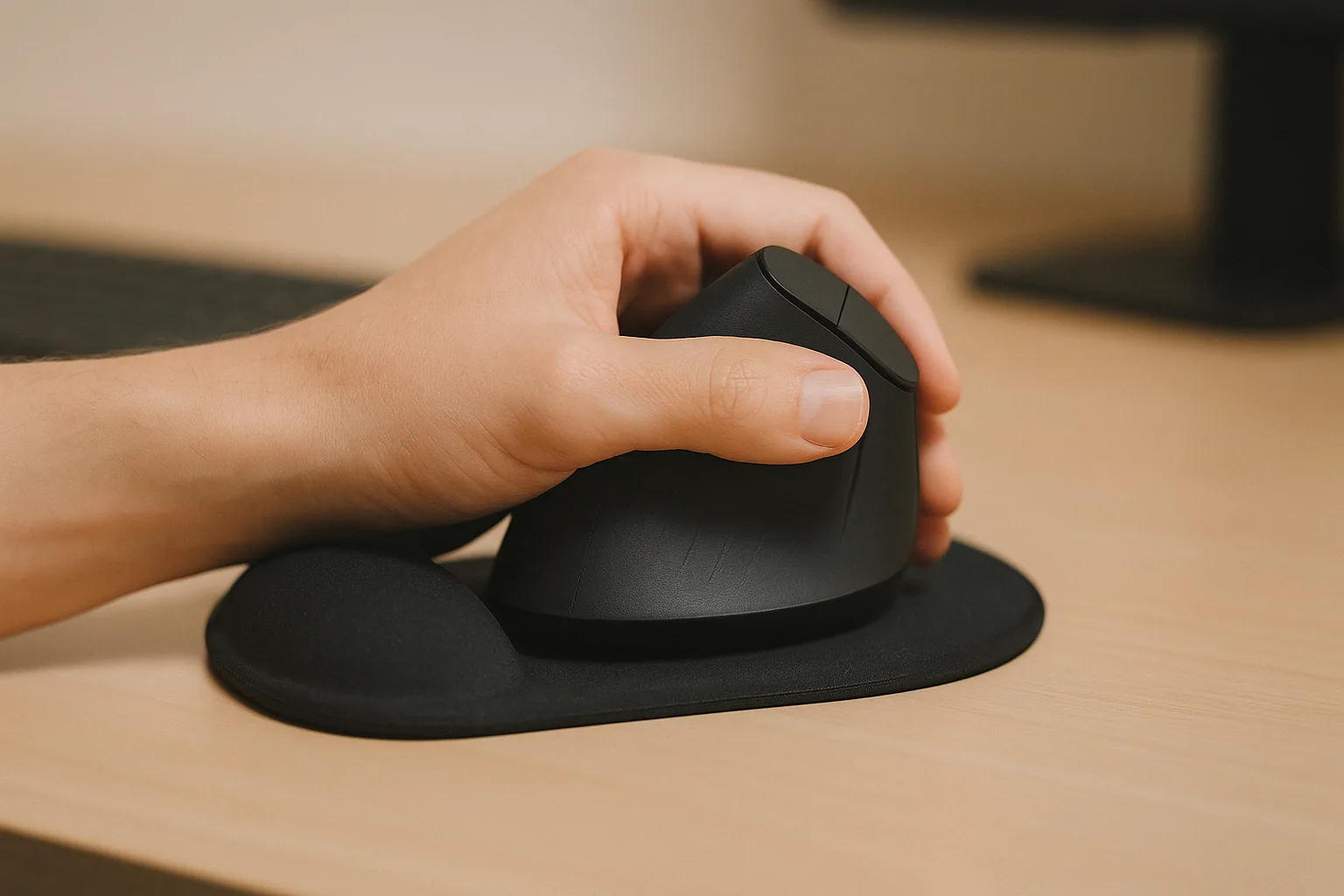
Your mouse is probably the single most-used tool on your desk. Wrong shape, wrong size, or a bad wrist angle and you're going to feel it.
The pain typically creeps in as a dull ache before building into something you can't push through anymore.
The tricky part is that different problems need different solutions.
A vertical mouse turns your hand into a handshake grip, getting rid of forearm pronation entirely. It's the go-to recommendation for carpal tunnel syndrome because it relieves pressure on the median nerve running through the carpal tunnel.
Give it about a week to adjust. Your shoulder might feel slightly different at first since you're recruiting different muscles to move the cursor.
Stick with it and it'll click.
With a trackball mouse, your hand stays completely still while your thumb or fingers roll a ball to control the cursor. No wrist movement, no wrist strain.
They're especially helpful for people dealing with tennis elbow since the forearm muscles finally get a rest.
Our best ergonomic trackball mouse guide compares thumb-operated and finger-operated models side by side. Thumb trackballs feel more natural for most people, but finger trackballs offer finer cursor control.
Too small and you're white-knuckling it. Too big and your fingers splay out uncomfortably.
Either way, fatigue sets in fast. We put together separate guides for small hands and large hands because "one size fits all" mice genuinely fit almost no one.
Tried several mice and nothing feels right? It might be worth looking into mouse alternatives altogether.
Pen tablets, touchpads, and head-tracking systems can be game changers for people with chronic pain. Our ergonomic touchpad review covers standalone touchpads as a full mouse replacement.
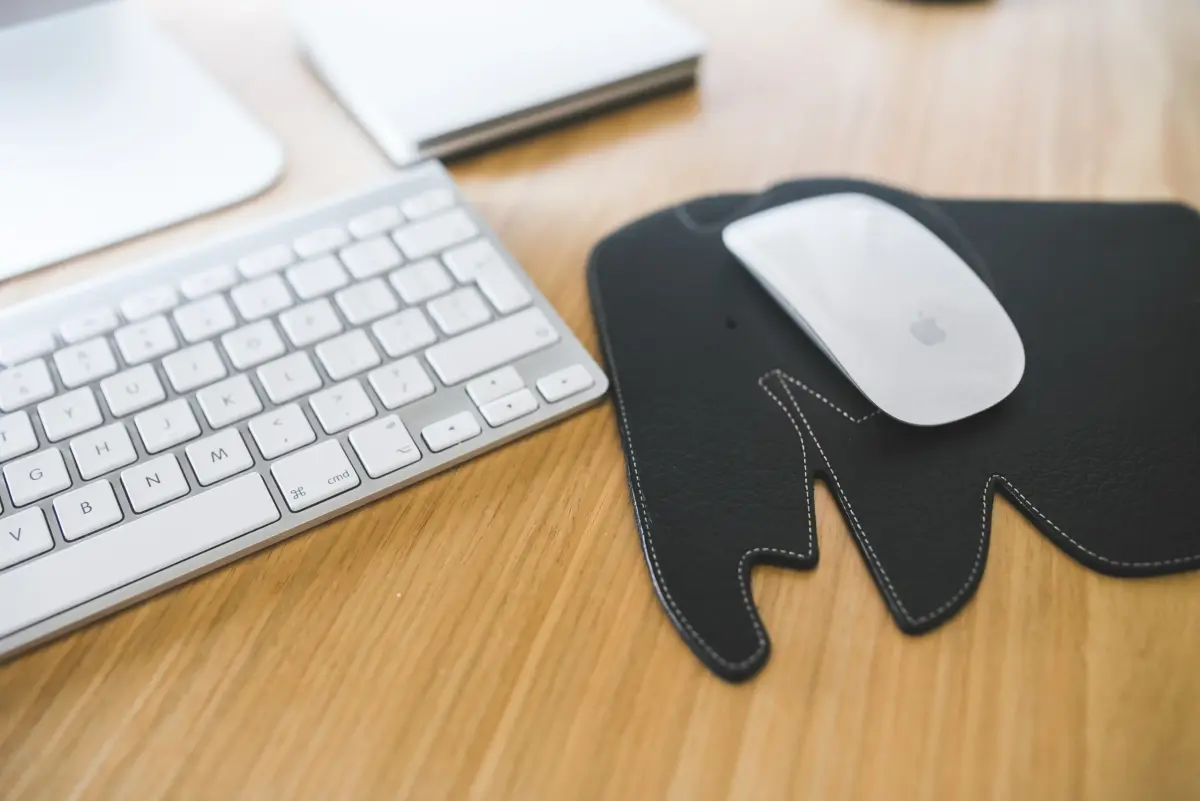
A solid ergonomic mouse pad with a built-in wrist rest zone makes a surprising difference, especially if you aren't ready to switch mice. It's the cheapest ergonomic upgrade out there and there's literally no adjustment period.
| Mouse Type | Best For | Wrist Position | Learning Curve | Precision |
|---|---|---|---|---|
| Traditional | No current pain, everyday use | Pronated (palm down) | None | High |
| Vertical | Carpal tunnel, wrist pain | Neutral (handshake) | 1 week | High |
| Trackball (Thumb) | Tennis elbow, limited desk space | Neutral to pronated | 1 to 2 weeks | Moderate |
| Trackball (Finger) | Precision work, design | Pronated | 2 to 3 weeks | High |
| Touchpad | Gesture-based workflows | Flat (minimal strain) | Minimal | Moderate |
| Pen/Stylus | Creative work, chronic pain | Writing grip | 1 to 2 weeks | Very high |
These accessories never make the headlines, but they punch way above their weight. I've watched people spend $800 on a chair while ignoring a $25 footrest that would've sorted their lower back pain in a week.
A quality wrist rest gives your palms a place to land between typing bursts. Key word: "between."
You shouldn't be pressing your wrists into a rest while you're actively typing. That actually increases pressure in the carpal tunnel.
Gel rests feel softer. Foam ones are firmer and keep their shape longer.
Memory foam lands somewhere in the middle. Which firmness works best comes down to personal preference, but steer clear of anything so mushy that your wrists sink in and create pressure points.
Desk-mounted arm supports clamp onto your desk edge and cradle your forearm while you work. They're fantastic for anyone who gets shoulder or upper back pain from holding their arms up all day, particularly when your chair's armrests don't reach desk height.
They barely take up any space, and most models clamp on without a single tool. It's the kind of accessory where you'll wonder why you didn't get one years ago.
If your feet aren't flat on the floor when your chair is set to the proper height, you need a footrest. When your feet dangle, your pelvis tilts forward and dumps extra stress onto your lower back.
This is incredibly common for anyone under 5'6" at a standard-height desk. A simple angled footrest runs about $30 and solves the issue right away.
Rocking or tilting versions add some active movement to keep your legs from going stiff. There's also the ergonomic foot pedal option if you want to shift certain inputs from your hands to your feet.
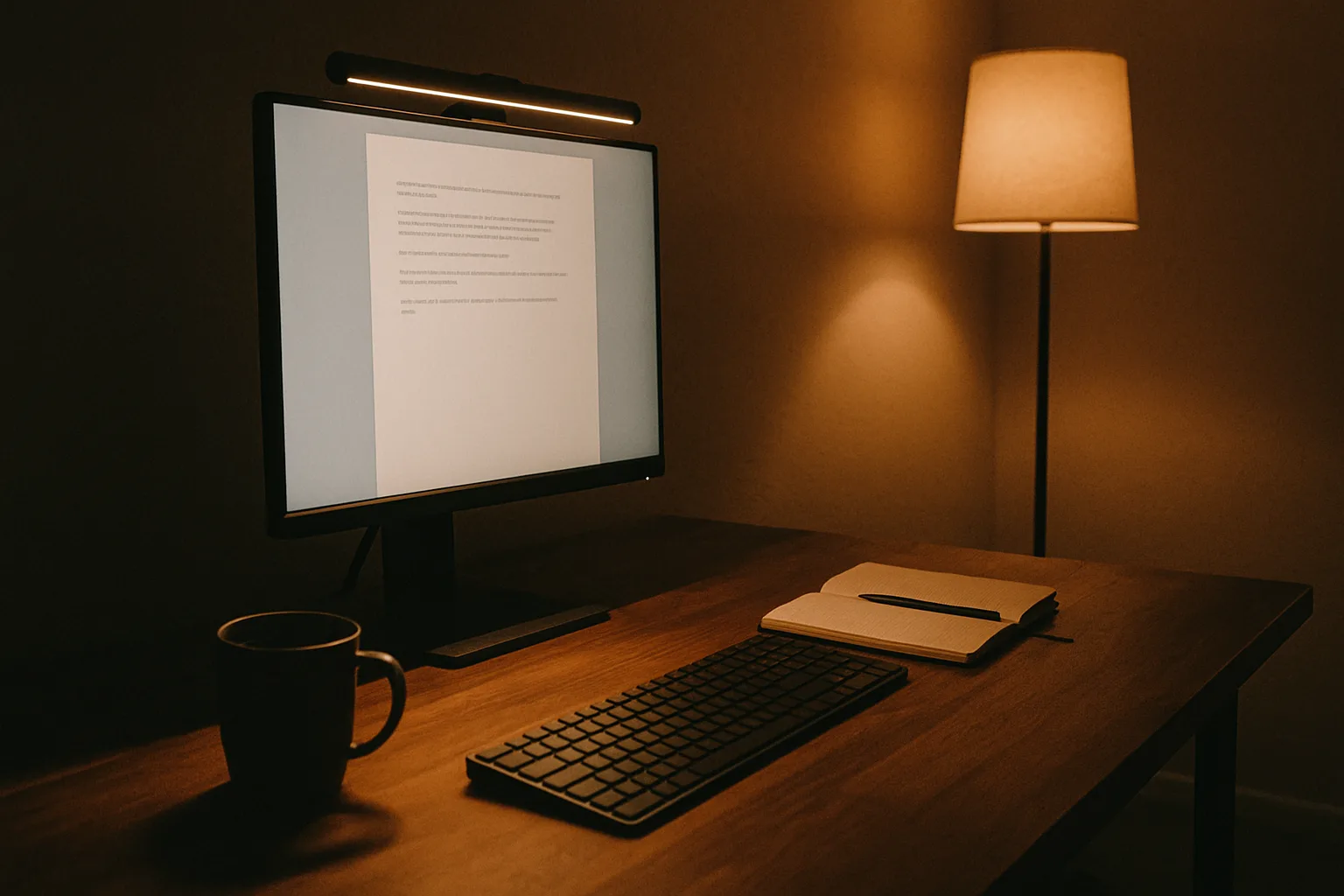
Bad lighting quietly wrecks your productivity without you realizing it. When your screen is brighter than your surroundings, your pupils are constantly adjusting and fatigue piles up fast.
Overhead fluorescents throwing glare onto your monitor? You'll squint and lean forward all day without even noticing.
The solution is layered lighting: ambient room light combined with a dedicated desk lamp that lights up your immediate workspace without bouncing glare off your screen.
For focused work, shoot for 4000K to 5000K color temperature. That's a neutral to cool white that keeps you alert without the harshness of full daylight at 6500K.
Warm light (2700K to 3000K) is fine as background room lighting but makes documents tougher to read up close.
Our office lighting guide runs through the full range of options, from monitor light bars to bias lighting setups. If headaches are hitting you by 3pm, lighting should be the very first thing you investigate.
These clip onto the top of your monitor and light up your desk without creating any screen glare. They've blown up in popularity, and honestly, it's well-deserved.
One light bar replaces a desk lamp and frees up valuable desk real estate.
The asymmetric light pattern pushes light forward onto your documents and keyboard while keeping the screen completely reflection-free. If you're only going to make one lighting upgrade, make it this one.
Don't place your monitor right in front of a window. The backlight creates brutal contrast that your eyes can't deal with for more than a few minutes.
Instead, set your desk perpendicular to windows so natural light hits from the side.
Overhead lights should sit slightly behind where you're seated, not directly above your monitor. Can't move the ceiling light?
A desk lamp angled at your keyboard area compensates well enough.
If you take calls at your desk, how you hold that phone matters more than you'd think. Wedging a phone between your ear and shoulder is one of the quickest ways to develop neck pain.
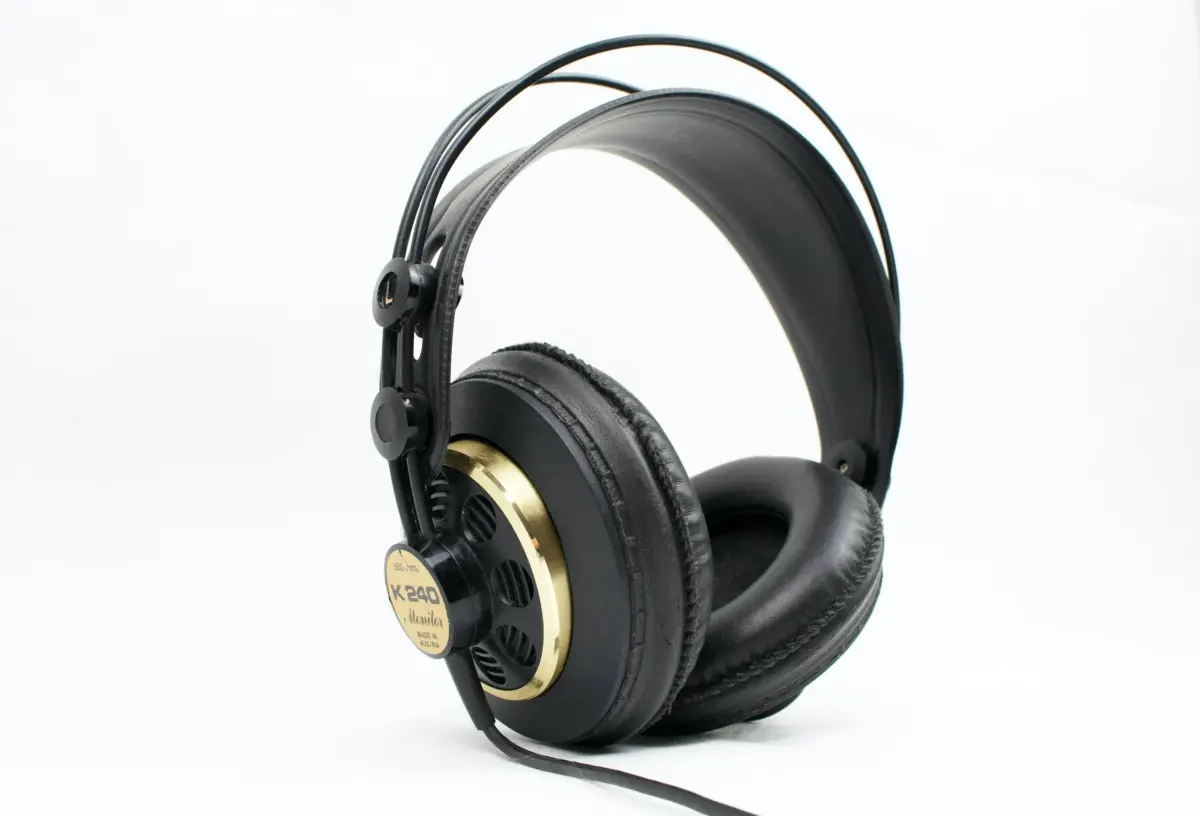
A good ergonomic headset eliminates that problem completely and frees up both hands.
Wireless headsets let you stand up, stretch, or pace around during calls. Over-ear styles spread weight across the headband instead of squeezing your ears.
If you wear glasses, pay attention to clamping force because a tight headset pressing your frames into your temples will give you headaches.
For desk phones specifically, an ergonomic phone with a built-in speakerphone or headset jack takes away the temptation to cradle. It's a straightforward hardware swap that prevents a real injury risk.
Every review on this site follows the same process. We use the product for at least two weeks in a real working environment before we write a single word about it.
No weekend-warrior impressions. No unboxing videos pretending to be reviews.
For chairs, we measure seat height range, seat depth, armrest adjustability, lumbar travel, and recline angle using actual tools. Then we sit in them through full workdays, across multiple body types whenever possible.
For keyboards and mice, we track typing speed and accuracy throughout the adjustment period, measure noise levels, and evaluate build quality. Wireless reliability, battery life claims, and software quality all get tested too when relevant.
We link to product pages on Amazon so you can check current prices, but our recommendations come from performance and ergonomic testing, not affiliate commissions. If something is bad, we'll say so no matter the price tag.
Starting from zero or working with a tight budget? Here's the priority order that'll get you the most ergonomic improvement per dollar spent.
Don't try to buy everything in one shot. Fix your biggest pain point first and build outward from there.
Your chair makes contact with more of your body for more hours than anything else in your office. When it's bad, nothing else you buy is going to compensate.
A $300 ergonomic chair with real lumbar support and seat depth adjustment will completely change your workday.
The Duramont Adjustable Office Chair and the picks in our chairs with neck support guide are great places to start.
Dealing with hand, wrist, or forearm pain? Your keyboard and mouse should be next on the list.
Switching to an ergonomic mouse can ease wrist pain within days. An ergonomic keyboard takes longer to get used to, but the long-term payoff is bigger.
A wrist rest and an ergonomic mouse pad can tide you over if a full device swap isn't in the budget just yet.
A monitor arm or basic riser brings your screen up to eye level. A desk lamp or monitor light bar kills the glare and eye strain.
Both are cheap fixes that deliver way more relief than their price tags suggest.
Using two monitors? Budget for a dual monitor arm.
It cleans up your desk considerably and lets you position each screen independently. Our two-monitor setup guide covers the ideal angles and distances.
After the big three are handled, accessories like a footrest, arm supports, and a quality headset fill in the gaps. None of these is essential on day one, but each removes a small source of strain that compounds over the years.
| Priority Tier | Products | Budget Range | Impact Level |
|---|---|---|---|
| Tier 1 | Ergonomic chair w/ adjustable lumbar | $200 to $500 | Massive |
| Tier 2 | Ergonomic keyboard + mouse | $50 to $200 | High |
| Tier 3 | Monitor arm + desk lamp or light bar | $30 to $150 | Medium to high |
| Tier 4 | Footrest, arm support, wrist rest, headset | $25 to $100 | Moderate |
After years of reviewing products and hearing from readers, the same mistakes keep popping up. The good news is most of them cost nothing to fix once you know what you're looking for.
Even with a perfectly adjusted chair, your body craves movement. Shift your recline angle every 30 to 45 minutes.
Got a sit-stand desk? Actually use it and alternate.
Your muscles will fatigue in any static position, no matter how "correct" it is.
Laptops are the worst offenders. That screen sits 8 to 10 inches below where it should be, which means you're looking down and hunching forward for hours on end.
A laptop stand paired with an external keyboard is the bare minimum fix.
Desktop users make this mistake too when their monitor sits directly on the desk. A $25 riser or monitor arm fixes it in five minutes.
People drop hundreds on chairs and keyboards, then work under a single overhead fluorescent that throws glare all over their screen. If you're squinting, leaning forward, or getting afternoon headaches, look at your office lighting before blaming your prescription.
The "best" chair brand is irrelevant if their chairs don't fit your body. A $200 chair matched to your height, weight, and proportions will outperform a $1,500 model designed for someone six inches taller than you.
Always check the manufacturer's size recommendations before you buy.
If you're under 5'8" and your desk doesn't adjust, there's a solid chance your feet hover slightly above the floor. You probably don't even notice.
Your lower back does, though. A footrest is cheap insurance against a problem most people don't know they have.
If your work bounces between typing, cursor movement, and drawing, relying on one mouse for all of it hammers the same muscles and tendons repeatedly. Rotating between a mouse, trackball, and keyboard shortcuts spreads the load around.
Some power users actually keep two pointing devices on their desk and alternate throughout the day.
Not every ergonomic problem calls for new gear. Before you spend any money, try these adjustments first.
They're free, and they solve the issue way more often than people expect.
If you've tried all the free adjustments and the pain won't quit, it's time to start looking at upgrades. Watch for these red flags:
Take numbness and tingling seriously. Those symptoms mean a nerve is getting compressed, and the longer you let it go, the harder it becomes to reverse.
Check our carpal tunnel mouse guide if you're noticing hand numbness, and see a doctor if it's been going on longer than a couple weeks.
If there's one big takeaway from everything we've tested and reviewed, it's this: your office setup is a system, not a pile of separate products. The best chair on the planet can't compensate for a monitor that's too low.
The perfect keyboard won't matter if your desk forces your elbows above your shoulders.
Start with whatever's causing you the most discomfort. Get that sorted.
Then work outward. You don't need to drop thousands in one shopping trip.
A few well-chosen upgrades in the right order will get you 80% of the way to a pain-free workday.
Browse our full library of office ergonomics reviews below to find products and guides that fit your situation. Every article includes our honest assessment, real-world testing data, and links to check current pricing.
roundup Our team tested 10 ergonomic keyboards with touchpad side by side. Here are the winners for comfort, value, and overall performance heading into 2026.
 roundup
 We put 10 ergonomic keyboards with trackball through real-world testing and narrowed the field. See our honest ratings, top picks, and detailed comparisons.
 roundup
 Looking for the right ergonomic staplers for less hand strain? We tested 10 and rated each on comfort, build quality, and price. Our full rankings are inside.
 roundup
 10 ergonomic foot rests for better posture reviewed after weeks of testing. We break down pros, cons, and which ones deliver the best bang for your buck.
 listicle
 Complete guide to are ergonomic keyboards worth it? here are 5 reasons why with expert insights, practical advice, and key principles. Everything you need to.
 roundup
 10 ergonomic classroom chairs for students compared after real-world testing. We ranked each one by comfort, build quality, and value to help you pick the ri...
 roundup
 Our hands-on test of 10 ergonomic desk setup for two monitors reveals which ones actually deliver on comfort and quality. Full breakdown with our top recomme...
 how to
 Complete guide to how to perform an ergonomic assessment in the office with expert insights, practical advice, and key principles. Everything you need to mak.
 roundup
 Looking for the right tall ergonomic chairs? We tested 10 and rated each on comfort, build quality, and price. Our full rankings are inside.
 roundup
 Our team tested 10 ergonomic devices for home & office side by side. Here are the winners for comfort, value, and overall performance heading into 2026.
 roundup
 10 ergonomic input devices: keyboards & mice tested head to head. We scored each one on comfort, durability, and value so you can skip the guesswork and buy ...
 roundup
 We tested 10 ergonomic neck support chairs for comfort, quality, and durability. See which ones made our top picks list and why they stand out in 2026.